

Why Is There Thermal Paste on CPU Pins?

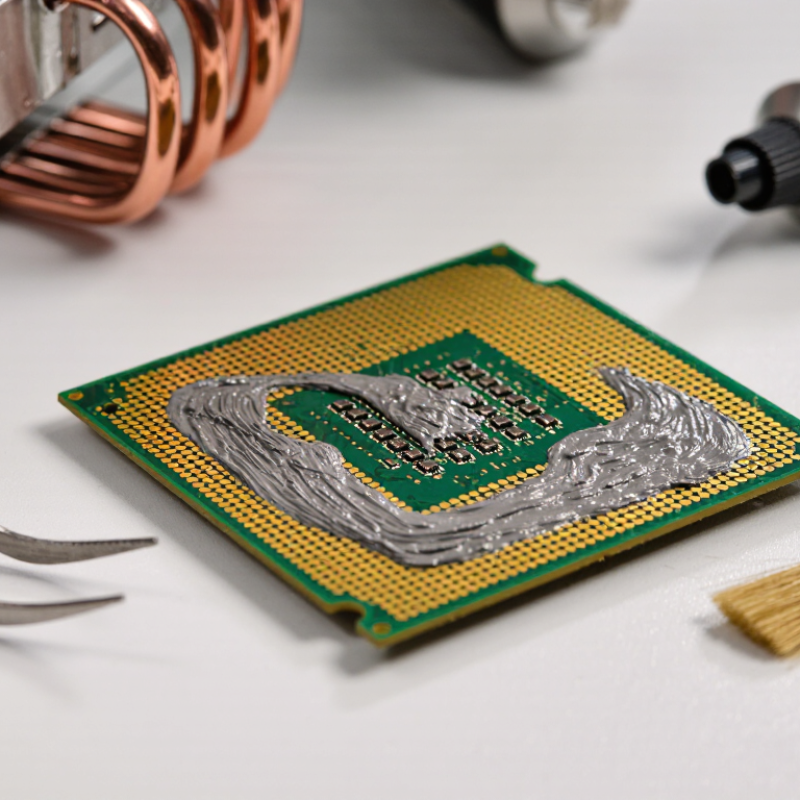
Thermal Paste On Pins can look alarming: a gray smear across tiny metal contacts, where even a small obstruction seems risky. But thermal paste does not belong on CPU pins. It is intended for the heat spreader, between the processor and cooler, where it fills microscopic gaps and helps transfer heat. On the underside, paste usually means too much was applied, the cooler was handled carelessly, or the processor contacted residue during removal.

The details matter. Many common pastes are electrically nonconductive, but that does not make contamination harmless. Paste can interfere with contact, collect dust, or prove difficult to remove from delicate pins. Some specialty compounds may conduct electricity, creating additional risk. A processor with pins on its underside also differs from one designed for a socket with pins, so identify the CPU type before attempting cleanup. Don’t force a brush or tool between contacts.

Hardware specialist Roman Hartung is a relevant voice on CPU cooling, but no verified quotation from him on paste-covered pins is available here. Rather than inventing one, this introduction uses an original repair-bench takeaway: “Keep paste on the heat spreader, and keep contacts clean.” Simple advice. Still, inspection can be tricky. A faint mark may be residue, not damage, and a rushed cleanup can bend pins that were straight before. The following guide explains why paste gets there, what risks are real, and how to assess the CPU before taking action.
Why Is There Thermal Paste on CPU Pins?

How Thermal Paste Reaches CPU Pins

Thermal paste usually starts on the metal heat spreader, not on the CPU pins. A small amount sits between the processor and cooler, where mounting pressure spreads it into a thin layer. Too much paste can squeeze over the edge. If the processor is tilted or dragged during installation, that excess may smear onto the underside and reach exposed pins.

Handling can also transfer paste. A paste-covered glove, tool, or work surface may leave a dab behind. On processors with pins attached to the underside, even a small smear can collect between rows. It may be hard to spot. The exact path is not always obvious, so do not assume the paste appeared only during installation.

Many common pastes are not electrically conductive, but their composition varies. Treat contamination carefully anyway. Paste between pins can interfere with contact, and pins are easy to bend while cleaning. Avoid scraping or wiping across them with force. If you inspect the processor, use bright, angled light and look for residue near the pin bases. It is tempting to blame the cooler, but handling, excess application, and removal can all contribute. The source may remain uncertain.

Why Thermal Paste Is Applied Between the CPU and Cooler

Thermal paste belongs between the CPU’s heat-spreader and the cooler’s cold plate, not on the CPU pins. Those metal surfaces look smooth, but magnification reveals tiny pits and ridges. Air trapped in those gaps transfers heat poorly. Paste displaces much of that air and creates a more effective path for heat to move into the cooler.

Use a small amount and let the cooler’s mounting pressure spread it. The right quantity depends on the processor’s shape and the paste instructions; a thick layer can hinder contact rather than improve it. A thin, even film is the goal. Not a blob. When removing the cooler, twist gently before lifting, since old paste can make the surfaces cling together.

Paste on pins or socket contacts is usually a sign of a spill, not normal application. It can obstruct electrical contact, and some compounds may conduct electricity. Keep the work area clean, and avoid scraping delicate contacts with metal tools. If paste has reached the pins, stop before powering on the system and check the processor or motherboard guidance for safe cleaning. I have seen people focus on the cooler surface and miss a smear near the socket; that small detail is easy to overlook.

How Paste on CPU Pins Can Affect Electrical Contacts

Why Is There Thermal Paste on CPU Pins?

Thermal paste on CPU pins usually arrives there during installation, removal, or cleanup. A small smear can transfer from the processor’s heat-spreader or cooler. The electrical risk depends on the compound and where it lands. Most ordinary pastes are not electrically conductive, but they can still obstruct a contact.

That matters.

A pin must meet its socket contact cleanly. Paste packed around a pin may stop it seating fully, causing a system that fails to start, loses memory detection, or behaves inconsistently. Conductive compounds create a more serious possibility: residue bridging neighboring contacts can form an unintended electrical path. The result is not guaranteed damage, but the risk deserves care.

Do not assume every startup problem comes from paste. Bent pins, uneven cooler pressure, or a poorly seated processor can produce similar symptoms. Under bright light, inspect the affected area without pressing or scraping the pins. If residue is present, follow the processor or motherboard maker’s cleaning guidance; a suitable high-purity isopropyl alcohol and a soft, lint-free tool are commonly used, with full drying before power is restored. I would be cautious here: even a careful cleaning attempt can bend delicate pins, so stop if the residue is hardened or access is awkward.

How to Identify and Safely Remove Thermal Paste from CPU Pins

Thermal paste on CPU pins often comes from a cooler shifting during removal, excess paste squeezed beyond the heat spreader, or careless handling. A thin gray film may be hard to see; use a bright lamp and magnification. Check whether the processor has exposed pins or flat contacts. On some systems, the delicate pins sit in the socket instead. Don’t mistake harmless residue on the metal lid for contamination between contacts.

ASTM D5470 test reports measure thermal resistance under stated sample thickness and pressure; a conductivity figure alone cannot establish electrical safety. That distinction matters: ordinary ceramic-filled paste is generally nonconductive, while metal-filled compounds can conduct electricity. If residue bridges contacts, leave the system unpowered. Dab gently with a lint-free swab lightly moistened with high-purity isopropyl alcohol, then let it dry fully. Never scrape with metal or force a brush between pins. A soft, clean brush can help with loose residue. Stop if a pin looks bent. It is tempting to keep cleaning until every speck disappears, but pressure can do more damage than a faint stain. Recheck under magnification before reinstalling.

How to Prevent Thermal Paste from Reaching CPU Pins

Thermal paste belongs between the processor’s heat spreader and the cooler, not on pins or contact pads. Before installation, switch off the computer, unplug it, and work on a clean, stable surface. Keep the area clean. Check whether the pins are on the processor or inside the socket; designs differ, and the vulnerable contacts may not be where you expect.

Clean old paste from the cooler base with a lint-free cloth and suitable isopropyl alcohol, then let it dry fully. Apply a small amount to the center of the processor’s metal surface, following the processor or paste maker’s instructions. A pea-sized dot works for many desktop processors, but size and paste consistency vary. Do not spread paste toward the edges with a finger. Lower the cooler straight down, without sliding it around, and tighten its fasteners evenly. Slow down here.

Before powering on, look around the processor’s edges for squeezed-out paste. If any reaches pins or contacts, do not force the processor into place or scrape with metal tools. Paste formulas differ, so avoid assuming residue is harmless. Check the cleaning guidance for your specific processor and compound, or ask a qualified repair technician. I sometimes find this step easier to rush than it should be; careful placement matters more than using extra paste.

Why Is There Thermal Paste on CPU Pins? - How to Prevent Thermal Paste from Reaching CPU Pins

Situation How Paste Can Reach the Pins Possible Effect How to Prevent It What to Do If It Happens
Too much paste is applied An oversized amount can spread beyond the CPU’s heat spreader during cooler installation or handling. Paste on the underside usually indicates accidental transfer or contamination rather than normal application. Paste between CPU pins and socket contacts can interfere with electrical contact. The result may be a failure to start, memory or CPU detection problems, or unstable operation. Apply a small amount to the center of the heat spreader, following the cooler or CPU maker’s instructions. Keep the CPU underside and socket area clean. Do not power on the computer. Remove the CPU only if it can be done safely, and clean the affected area with a method suitable for the paste and CPU type.
Paste is placed on the wrong surface Applying paste to the underside of the CPU, around its pins, or directly into the socket can contaminate the contacts. Socket contacts may not connect reliably with the CPU pins or pads. Cleaning a socket can also damage its delicate contacts if done carelessly. Apply paste only to the CPU heat spreader—the flat metal surface that contacts the cooler. Avoid touching pins, pads, and socket contacts. For paste inside a socket, avoid wiping or brushing the contacts. Consult the hardware manufacturer or a qualified repair technician if contamination is difficult to remove.
Paste transfers during handling or cooler removal Paste on fingers, tools, a work surface, or the cooler can be transferred to the CPU underside while components are being handled. Residue can collect between pins, making inspection and cleaning more difficult and potentially affecting contact. Work on a clean, dry surface; hold the CPU by its edges; and keep used paste, wipes, and tools away from the CPU underside. Inspect the CPU under good lighting before reinstalling it. Keep the CPU unpowered and avoid forcing it into the socket.
Thermal paste type is unknown Thermal pastes vary. Many are electrically nonconductive, but some compounds may be electrically conductive or capacitive. Conductive material near electrical contacts can create a short circuit. Even nonconductive residue can obstruct a reliable connection. Check the product’s safety and electrical properties before use, and keep every type of paste away from pins and socket contacts. Do not assume that residue is harmless. Identify the paste if possible and clean it appropriately before powering the system.
CPU pin or socket-contact design is mistaken Some processors have pins on the CPU, while others have flat contact pads and use pins in the motherboard socket. Paste can contaminate either contact surface. Bent or contaminated contacts can prevent proper installation or electrical connection. Socket pins are especially delicate. Identify the CPU and socket design before installation. Align the CPU using its orientation markers and lower it gently without force. Check for visible contamination or damage. Do not straighten or scrape delicate contacts unless you have the appropriate experience and tools.

Important: Thermal paste normally belongs only between the CPU heat spreader and the cooler. If paste is on pins or socket contacts, keep the system powered off; cleaning methods depend on the paste and the component design.

Choose a global leader for your hydraulics solutions

How can we help you?

Call to 0034 943884600 Contact us
Call us Contact us

We use cookies to ensure that we give you the best experience on our website. If you continue without changing your settings, we'll assume that you agree to receive cookies on the HINE website. For more information read our cookie policy page, click the link for more information.plugin cookies

ACEPTAR
Aviso de cookies